.skills]` overlays per-skill toggles for that role.
- Use `"quoted names"` to refer to skill keys containing spaces.
# Contributing
Kent is intentionally narrow and opinionated. We value changes that improve reliability, output quality, reviewability, and long-term maintainability. The best contributions are focused, technically coherent, and aligned with the product direction.
## Start With an Issue
External contributions should begin with an issue before a pull request is opened.
This helps avoid wasted work and gives maintainers a chance to confirm scope, approach, and fit. Once the issue has been triaged, a PR is welcome.
Changes are less likely to be accepted if they add broad configurability, plugin-style surface area, extra UI chrome, or product direction that conflicts with the repository's design principles.
## Product Boundaries
Kent is intentionally narrow. Feature proposals are expected to improve reliability, output quality, observability, long-running work, or composability without adding avoidable model burden.
These directions are part of the current product boundary and are unlikely to be accepted:
- **Native in-process subagent orchestration.** Use separate headless Kent runs through `kent run`, named subagent roles, shell scripts, tmux, or background shells. Keeping side agents as normal Kent processes makes them scriptable, inspectable, resumable, and easy to kill.
- **Plan mode as a dedicated product surface.** Frontier models can already plan, revise, and ask questions. Kent should not add a UI mode that constrains the model or encourages ceremonial planning output.
- **MCP as a first-class integration surface.** Kent prefers a small model-facing tool set and normal CLI programs. If a capability can be exposed as a command-line tool or script, that is usually the better integration path.
- **Extra UI chrome or vibe-coding surfaces.** Kent's UI should stay focused on terminal-native engineering work: steering, inspection, review, session control, and long-running execution.
- **Runtime toolset or model switching for active sessions.** Changing these mid-session can invalidate prompt caches and alter the model contract. Prefer per-session config, subagent roles, or new sessions.
- **Microcompaction.** Compaction maintains continuity and cache behavior. Tiny frequent rewrites add cost and risk without enough benefit.
- **Built-in sandboxing as a trust boundary.** Sandboxing should be done with real isolation such as containers, VMs, or remote environments. Kent may support workflows that run inside those environments, but the CLI itself should not pretend that a fragile local sandbox is a security boundary.
- **A dedicated WebFetch tool.** Use shell-accessible tools or scripts that return raw Markdown, such as Jina Reader wrappers. This keeps web access transparent and avoids another model-facing tool.
- **Anthropic, Gemini, or Antigravity subscription usage.** Kent supports these only when provider terms allow third-party harnesses. API-key or compatible-provider integrations should use the normal provider capability model.
This list is not a substitute for design review. If a proposal appears to conflict with a boundary but solves an important reliability or quality problem, open an issue and describe the tradeoff clearly before writing code.
## Development Setup
Prerequisites:
- Go `1.25`
- Just
- Bun `1.4.2` for desktop and docs commands
- Node `22` or newer for the desktop test runner
- ripgrep (`rg`)
- Rust toolchain for Tauri native builds in `apps/desktop`
Bun's default package cache is shared across Kent checkouts on the same machine. Each checkout creates its own `node_modules` tree.
Prepare the checkout:
```bash
just setup --apply
```
## Before Opening a Pull Request
For code changes, run:
```bash
just check --dry-run
```
Use typed variants to narrow work:
```bash
just build go
just test server -- ./server/sessionstore -run TestResume
just lint docs --dry-run
just check desktop --dry-run
```
Bare `just build` builds the active Go, desktop, and docs areas. Bare `just test` runs server and desktop tests. Frozen Rust runs only through explicit `rust` variants. Native Tauri builds additionally require platform-specific WebView/build prerequisites.
## Pull Request Expectations
Please keep pull requests small enough to review in one pass and tie each one to an issue maintainers have already triaged.
A strong PR usually:
- solves one clear problem
- includes tests for behavior changes
- updates user-facing documentation for user-visible changes
- keeps `AGENTS.md` accurate when project guidance changes
- avoids unrelated cleanup in the same change set
Draft PRs are fine when they are clearly marked and linked to the issue.
## Questions
If you want to work on something and there is no issue yet, open one first. If an issue already exists, use that thread to discuss the work.
## AI Code Policy
AI-generated code is absolutely acceptable, **provided it matches the quality standards** of the repo.
Fully or mostly AI-generated PRs with no or little human review that do not adhere to the current project architecture or guidance & constraints (in short, "Slop") will be closed without notice or discussion with the author of the PR being blocked and reported.
Additionally:
- Do **not** leave "co-authored by " attributions
- Disclose the use of AI in the PR authorship
- Do **not** introduce additional AI configuration files such as `.cursorrules` to the project in an unrelated PR. Editing AGENTS.md is fine and encouraged.
- Do not leave elaborate AI-generated PR descriptions. Prompt the agent to leave succinct, readable, human-like descriptions that are to the point.
# Home

Kent is a high-performance coding agent for professional Agentic Engineers focusing on output quality and long-running tasks.
Quickstart
·
Docs
·
Releases
Kent is a coding agent for professional engineers. It gives frontier coding models the features that empower them to produce their best output: from contextual reminders and harness awareness to token-optimized searches and async execution loops, then wraps that in a UI built for engineers who want to ship real products and work across multiple large codebases.
Codex and Claude Code are good defaults for quick demos and vibe-coding. Kent is for the moment you want the model to work freely but safely, for hours, on large codebases, as your pair programmer & collaborator.
Try it if you have ever lost work quality after compaction, watched an agent hide the command that mattered, babysat a long refactor with "continue" or ralph loops or fixed broken code after the agent ignored repository rules.

## Why Kent
### Keeps going when the context gets hard
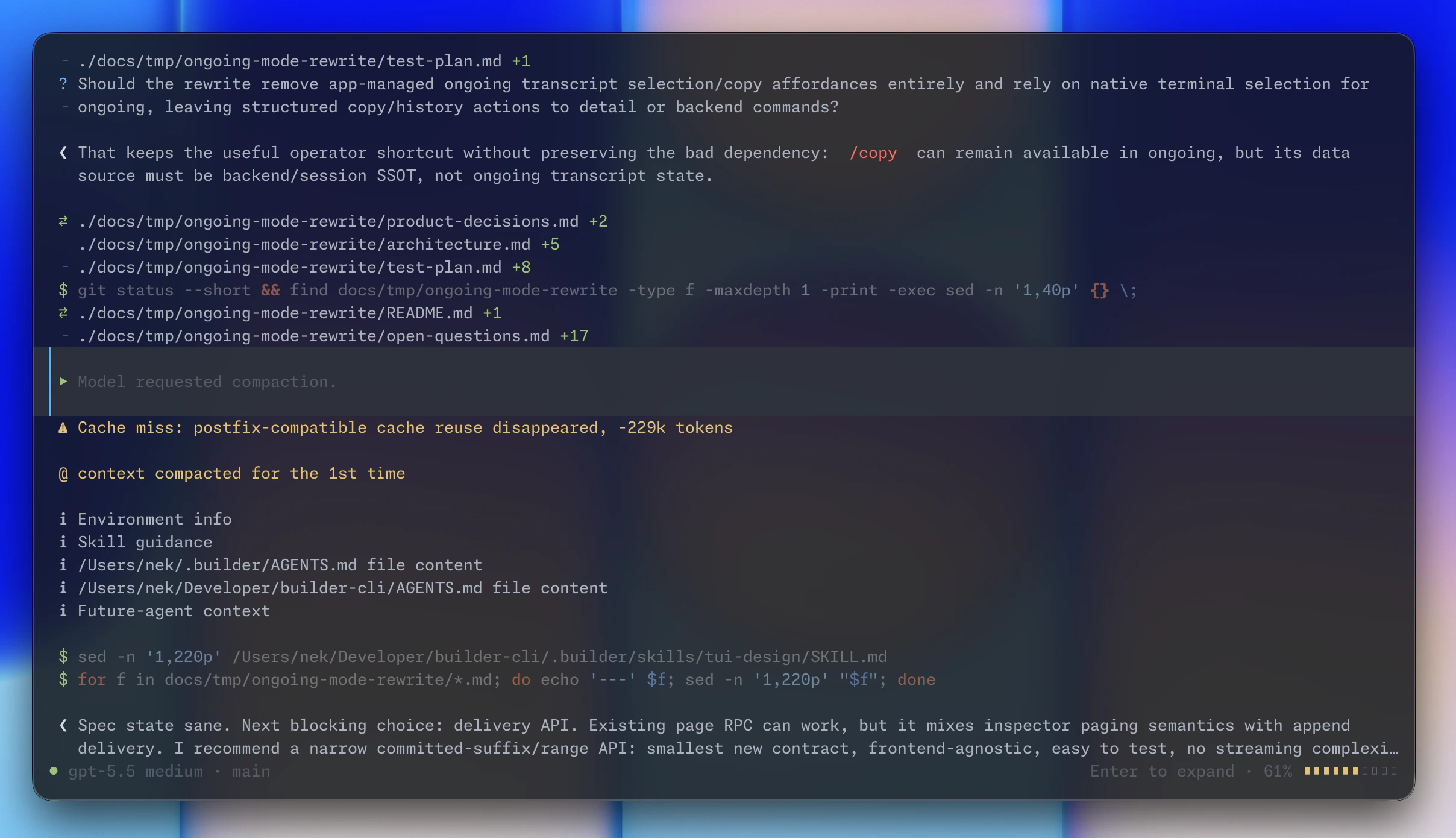
Compared to other harnesses, Kent has significantly higher compaction quality with its carryover prompts and a multi-step algorithm that **lets the model decide** when and what to compact.
The expensive failure is when model half-remembers a decision, forgets an in-flight edit, or restarts a plan after a bad summary. Kent is designed to make 35+ compactions survivable.
### Quality is first-class
- Kent teaches the model to **ask you questions** instead of bulldozing through changes to produce slop. Expect to make important product decisions, learn about caveats, perform refactoring, and ship high-quality code with Kent.
- Kent runs a **customizable supervisor agent** in parallel with the main agent. The supervisor reviews the agent's changes and steers it to follow instructions and do its best work.
- Subagents are real Kent runs. The model delegates to **customizable agent roles, runs everything in async shells**, sleeps and wakes up in a natural, **0-token ralph loop** until the task is done, no matter the scope.
### Token-efficient & cheap
- Smart tool processing. Use **built-in shell optimizers** natively or **connect tools like `rtk`**, and unlike other popular coding agents, the model controls how the output is optimized.
- Unlike harnesses which overload models, Kent ships just **three tools** that enable the model to do everything: `patch`, `shell`, and `ask`. Everything else is smart, contextual, composable, non-blocking.
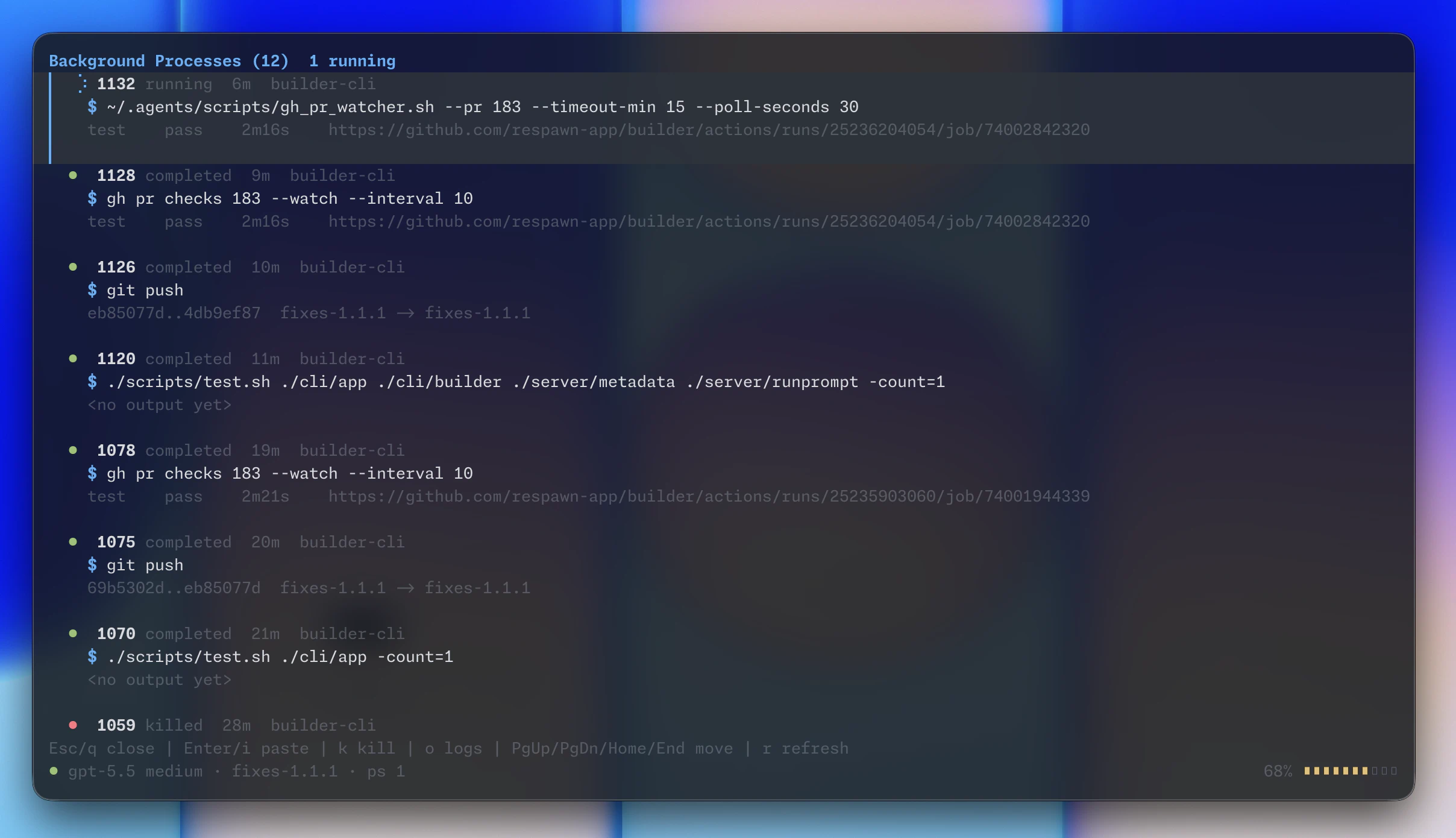
- Efficient shells. **Tools run async** with the main model: no timeouts, no retries, and compact file-based inspection of shell outputs lead to **1.6-2x token savings**.
- Cache invalidation tracking. Unlike some harnesses that drain your limits in minutes due to a caching bug, with Kent **you know about every unwanted cache miss**. Not that they will happen, with Kent's **snapshot-based cache preservation** mechanisms.
- **Shell-native, scriptable search/read stack** with optimized `rg` config enables **40% more efficient searches** instead of clunky Search, Glob, Grep, Read, Scroll chains.
### Everything is customizable & transparent
- Unlike popular harnesses, Kent supports customizing **subagent roles**, **compaction algorithms**, web search, supervisor and main model **system prompts**, skills, tools, reminders, caching, and more.
- With local overrides of everything, create **per-project system prompts**, skill bundles, subagent roles and share the setup with your team via a single `.toml` file.
- The default UI is **fast, non-flickering, native transcript**. Unlike some providers, Kent's detailed mode lets you **inspect every input and output** so there's no surprises, ever.
### True Sandboxing & Parallelization
- Kent runs a single 50mb **server process that orchestrates all your agents** & shells. Unlike other harnesses which embed an unreliable custom sandbox, you can run Kent **completely isolated** (e.g. via Docker) and connect to it from your favorite terminal - no SSH, no tmux.
- Git worktrees are first-class. Run 10+ agents in parallel via **auto-managed worktrees with customizable setup logic**. Unlike other harnesses, the agent knows how to handle the worktree and won't break your repo.

## Philosophy
Kent is intentionally narrow. It optimizes for engineers who want collaborative workflows, token efficiency, and quality outputs. As such, there will not be:
- MCP support; MCP is suboptimal for shell-enabled agents, use [mcporter](https://github.com/openclaw/mcporter) or native CLIs.
- Plan mode; just prompt the model to plan with you. Kent is built for collaborative work and can plan without any explicit nudges or restrictions.
- WebFetch tool; teach the agent to use [r.jina.ai](https://github.com/respawn-llc/kent/blob/main/jina.ai/reader), browser control CLI, or curl.
Ready to try? Head over to the [quickstart](https://kent.sh/quickstart/) guide.
## Why no Anthropic/Gemini model support?
- Anthropic and Gemini disallow use of third-party harnesses with subscriptions. Using them can get you banned, asking for their support will get people behind Kent sued. Please do not ask for support here.
- Using models with API keys can be supported, but the priority is low due to high costs of testing and significant effort to optimize the harness for different models. Please create or upvote an issue if you want to use Kent with a new provider or model. Kent already supports OpenAI Responses-compatible APIs, local models, and OpenAI API keys.
## License
Kent is licensed under `AGPL-3.0-only`. See [LICENSE](https://github.com/respawn-llc/kent/blob/main/LICENSE).
# Headless runs
> Headless Kent runs, scriptable output modes, and how interactive Kent uses the same mechanism for subagents.
Kent supports a headless, non-interactive run mode via `kent run`, which is also how Kent runs subagents.
This keeps the subagent path contextual and scriptable: subagent invocations are not new tools and consume no extra tokens in model context.
Headless runs are non-interactive. They do not stop to ask the human operator questions mid-run, issue tool preambles, or support the Supervisor. That makes them more suitable for background execution, automation, and saves tokens. You can talk to a headless agent if you select it in the `/resume` (session picker).
:::tip
`kent run` needs a server connection to keep long-running shells and agents properly orchestrated. If you want to script kent runs, make sure the [Server](../server/) is running.
:::
Run a single prompt:
```bash
kent run --agent fast "summarize the unstaged changes in this repo"
```
Continue an existing headless session:
```bash
kent run --continue ""
```
Control an active shared run from another shell or agent:
```bash
kent run steer "adjust the next step" # steer a running agent
kent run stop # gracefully interrupt the run
kent run wait # wait for the model's turn to end
kent run watch # report the next question or terminal outcome
```
When a human invokes `kent run steer`, the running Session receives a user message. When agents communicate, they also receive guidance on how to respond.
### Questions
Subagent `kent run` sessions cannot ask questions, but agents can answer each other's questions for workflow tasks and interactive sessions. In general, humans don't need to use the CLI, agents know how to ask and answer each other's questions.
To inspect or answer a pending Question from an interactive or Workflow Session:
```bash
kent question --session
kent question answer --session --option 1 --commentary "Additional context"
kent questions --task KENT-335
kent questions answer --task KENT-335 --commentary "Freeform answer"
kent questions list --session
kent questions list --session --max-handoffs 1 --json
```
More info in the CLI help.
## Subagent Roles
Roles select the model settings and context used by a headless Session.
- Resuming a Session preserves the Session's last-used role.
- You can start a new interactive session with a specified role by running `kent --agent `.
- Once the agent starts, kent snapshots and locks some settings from its role - model, provider, tools, thinking, and others, to prevent cache invalidation because you cannot change the agent role without invalidating the caches, so **any further adjustments to roles or parameters will be ignored at least until the next compaction.**
- To apply a role while reopening a specific Session, combine it with `--session` or `--continue`.
- To open an interactive session with a role, run: `kent --agent `.
See [Configuration](../config/#subagents) for role overrides and delegation metadata.
## Delegation Depth
Kent limits model-originated creation of new children to prevent infinite subagent recursion. A root session is depth `0`; with the default maximum of `2`, a root can create a subagent at depth `1`, that subagent can create one at depth `2`, and creation of a child at depth `3` is rejected.
Configure the root-level TOML key, supported range, and disable-with-zero behavior in the [configuration reference](../config/#core-settings). There is no environment-variable or `kent run` flag override.
## Workspace Binding
Headless runs fail if the selected workspace is not already attached to a Kent project.
This is needed to enable functionality related to project management and allows remote execution, but sometimes comes as a limitation where you want to run subagents in different repos. Agents already know how to do this. To fix the error manually, you simply need to approve workspace (git repo, folder etc.) binding:
- `kent project` prints the project id for the bound workspace at `path` or `cwd`. Use to learn project IDs.
- `kent attach ` attaches another workspace at [path] to the project already bound to `cwd`.
- `kent attach --project [path]` attaches using the ID.
- `kent detach --project [path]` removes one workspace binding from that project. The path defaults to the current directory; use `--workspace ` when the saved path is inaccessible or missing.
- `kent project default --project [path]` changes the project's default workspace.
- `kent rebind ` retargets a session to a target path's only attached project.
- `kent rebind --project ` selects a non-workflow session's project explicitly and attaches an unbound target workspace.
- Workflow sessions cannot move across projects.
- Existing background commands continue in their original directories.
More info in the CLI help.
### Project deletion
Delete a Project by its canonical Project ID:
```bash
kent project delete
```
You can only do that if there are no active sessions or tasks targeting it.
:::warning
Deleting a project **permanently deletes without a trace all tasks associated with it** and orphans the sessions.
:::
Project deletion never deletes or moves workspace files.
## Output Modes
By default, `kent run` writes each finalized assistant commentary or final response to `stdout` as it is committed. Use `--quiet` to suppress live output and print only the terminal result. For scripting, use JSON mode:
```bash
kent run --output-mode=json "summarize the repo" | jq
```
JSON mode emits exactly one final object on `stdout`.
```json
{
"status": "ok",
"result": "...",
"session_id": "...",
"session_name": "...",
"continue_id": "...",
"continue_command": "kent run --continue ... \"follow-up\"",
"warnings": ["..."],
"duration_ms": 1234
}
```
On failure, JSON mode emits `status: "error"` and an `error` object instead of `result`.
An over-limit child launch uses the stable `subagent_max_depth_exceeded` code and includes the attempted depth and active maximum:
```json
{
"status": "error",
"duration_ms": 0,
"error": {
"code": "subagent_max_depth_exceeded",
"message": "subagent launch rejected at depth 3 (maximum 2): ...",
"attempted_depth": 3,
"max_depth": 2
}
}
```
Because the child was never created, this response has no session ID or continuation command. Final-text mode prints the actionable policy message instead.
---
Supported run-specific flags:
| Flag | Description |
| ----------------- | ------------------------------------------------------------------------------------------------------------ |
| `--timeout` | Optional run timeout such as `30s`, `5m`, or `1h`. Default is no timeout. |
| `--output-mode` | `final-text` or `json`. Default is `final-text`. |
| `--progress-mode` | `stderr` for live responses and notices, or `quiet` for final-result-only output. Default is `stderr`. |
| `-q`, `--quiet` | Shortcut for `--progress-mode=quiet`. |
| `--continue` | Continue a previous session by id. |
| `--agent` | Select a role; `default` uses the headless default. Omission preserves a resumed role and defaults new runs. |
| `--fast` | Shortcut for the built-in `fast` subagent role. |
# Lifecycle hooks
> Run a local command when an interactive terminal session changes state.
Lifecycle hooks run a local command for events observed by an interactive Kent **terminal client**. Each invocation receives one JSON event on stdin.
## Configuration
Add the command and any fixed arguments to the global `config.toml`:
```toml
[hooks.client]
lifecycle = ["python3", "/absolute/path/lifecycle_hook.py"]
```
The global config is `~/.kent/config.toml` unless Kent uses another persistence root. The terminal client reads this setting at startup. The command inherits the client's environment and current directory.
For remote attachments, the command runs on the terminal client's machine, not the server. Desktop clients, headless runs, subagents, and server processes do not run lifecycle hooks.
Use [command post-processing](../command-postprocessing/) instead to transform `exec_command` output on the server.
## Events
Kent sends these categories to the configured command:
| `category` | `hook_event_name` | `details` |
| ---------------- | -------------------- | ------------------------------------------------------------------ |
| `session.start` | `SessionStart` | `kind` is `new` or `resumed`. |
| `task.complete` | `Stop` | `final_answer` and `work_performed` describe the completed run. |
| `task.error` | `PostToolUseFailure` | `diagnostic` describes the runtime failure. |
| `input.required` | `PermissionRequest` | `kind` is `question` or `approval`. `summary` contains the prompt. |
| `resource.limit` | `PreCompact` | `compaction_mode` identifies the compaction mode that started. |
`category` is the canonical event name. `hook_event_name` is an OpenPeon-compatible alias.
`task.complete` requires an assistant final answer. `task.error` requires a failed runtime result. Interruptions and successful runs without an assistant final answer emit neither event.
`resource.limit` emits for every compaction start, including manual compaction.
## Payload
This `task.complete` payload shows the schema:
```json
{
"schema_version": 1,
"cesp_version": "1.0",
"scope": "client",
"category": "task.complete",
"hook_event_name": "Stop",
"occurred_at": "2026-07-20T10:15:30Z",
"focused": false,
"context": {
"session_id": "4f44b818-e9d5-4ff4-a4ab-b9bc03bb776f",
"session_title": "Review API changes",
"workflow_task_id": "ENG-42"
},
"details": {
"final_answer": "The requested changes are complete.",
"work_performed": true
}
}
```
`schema_version` identifies the Kent payload schema. `cesp_version` and `hook_event_name` provide OpenPeon compatibility.
`occurred_at` is a UTC timestamp. `focused` reports whether the terminal client had focus when it observed the event. `context` includes the session ID, session title, and workflow task ID when available. Absent values are omitted.
Payloads do not include filesystem paths, transcript history, tool input, command output, hidden reasoning, credentials, or internal runtime identifiers.
## Delivery
Delivery is asynchronous and best-effort. Events are not persisted or retried. Bursts may drop events, and invocations may overlap or complete out of order.
Each invocation has a 30-second timeout. Kent ignores stdout. Launch failures, non-zero exits, and timeouts produce a terminal notice using up to 4 KiB of stderr. Repeated failures may be combined into one notice with the total count and latest diagnostic. A failure leaves the hook enabled.
Closing the session cancels running hook commands without waiting for them. Descendant processes may continue. Hook output and failures do not change agent or server behavior.
# Prompts
> Prompt customization files, precedence, placeholders, and session snapshot behavior.
Learn how to customize system prompts, supervisor instructions, subagent system prompts, workflow prompts, and repo guidance.
Models will follow the instructions by role: `system -> developer -> user`, from most authoritative to least authoritative. With kent, you can customize all three levels:
## Instruction Files
- `~/.kent/AGENTS.md` is a global instructions file injected into every session automatically.
- `/AGENTS.md` adds instructions that are specific to the current project.
These files are `developer`-level instructions.
## System Prompt
Kent selects one configured custom prompt through [configuration precedence](../config/#precedence): global, shared workspace, then Main Workspace private settings. A selected role uses its own `system_prompt_file` when configured and inherits the agent selection when omitted.
The selected file keeps its scope in this priority order, lowest to highest. Only one of the configured-file entries participates:
- Built-in system prompt
- `~/.kent/SYSTEM.md`
- `~/.kent/config.toml` `system_prompt_file`
- `/.kent/SYSTEM.md`
- Shared workspace or Main Workspace private `system_prompt_file`
- Selected `[subagents.]` `system_prompt_file`
Paths are resolved relative to the configuration file that supplies them unless absolute.
Kent snapshots the rendered system prompt when it creates the session contract. Edits take effect after successful compaction and the next model request.
## Placeholders
You can assemble your own system prompt from building blocks provided by Kent. It's highly recommended to leave the instructions about the harness (`HarnessWorkflowAutonomy`) intact.
System prompt files use Go template syntax with these fields:
- `{{.DefaultSystemPromptHarnessWorkflowAutonomy}}` - important guidelines on harness behavior, environment constraints, available tools.
- `{{.DefaultSystemPromptPersonality}}` - Kent agent identity, communication style, and engineering posture.
- `{{.DefaultSystemPromptAmbiguityAndOutputQuality}}` - opinionated product ambiguity handling and implementation quality rules.
- `{{.DefaultSystemPromptFinalAnswerAndFormatting}}` - final response, Markdown, and formatting rules suitable for TUI.
- `{{.DefaultSystemPrompt}}` - full text of the built-in Kent system prompt.
- `{{.LaunchCommand}}` - Kent executable command, e.g. `path/to/kent.exe`.
- `{{.EstimatedToolCallsForContext}}` - estimated function/tool-call budget before compaction/handoff, exact number that varies with model context window, like `185`.
- `{{.EditingToolName}}` - name of the tool the agent uses to modify files, like `edit` or `patch`. Varies per model.
Example:
```md
{{.DefaultSystemPromptPersonality}}
{{.DefaultSystemPromptHarnessWorkflowAutonomy}}
# Team Rules
Prefer small, reviewable commits.
```
Additionally, if `tool_preambles = true` in the [config](../config/), another block of text is appended instructing the model to talk to you while working.
## Supervisor System Prompt
Set `reviewer.system_prompt_file` to use a custom supervisor system prompt:
- `~/.kent/config.toml`
- `/.kent/config.toml`
- `/.kent/config.local.toml`
Edits take effect for Supervisor requests after compaction.
# Quickstart
> Install Kent, authenticate on first launch, tune the most useful settings, and learn the main session workflows.
import { Tabs, TabItem } from "@astrojs/starlight/components";
import QuickstartPlatform from "../../components/QuickstartPlatform.astro";
## 1. Install Kent server and CLI
Open PowerShell and run:
```powershell
irm https://kent.sh/install.ps1 | iex
```
#### Homebrew (Apple Silicon)
```bash
brew tap respawn-llc/tap
brew install respawn-llc/tap/kent
```
#### Install script
```bash
curl -fsSL https://kent.sh/install.sh | sh
```
#### Homebrew
```bash
brew tap respawn-llc/tap
brew install respawn-llc/tap/kent
```
#### Arch Linux (AUR)
The [`kent-bin`](https://aur.archlinux.org/packages/kent-bin) AUR package is community-maintained.
```bash
yay -S kent-bin
```
These versions are **not auto-updated**. Please keep them updated manually by re-running install scripts.
Check the installed version with: `kent --version`
## 2. Install the background service
:::note
Kent consists of two apps: whatever client you prefer, and the **server**. To use Kent, you first need to have a running server. Run `kent serve` every time, or install a system service once.
:::
If the install script did not install the background service, or you used a package manager, install it below.
Open **PowerShell as Administrator** and run:
```powershell
kent service install
```
```bash
kent service install
```
```bash
kent service install
```
See [Kent Server](../server/) for more info.
## 3. Install Kent Desktop
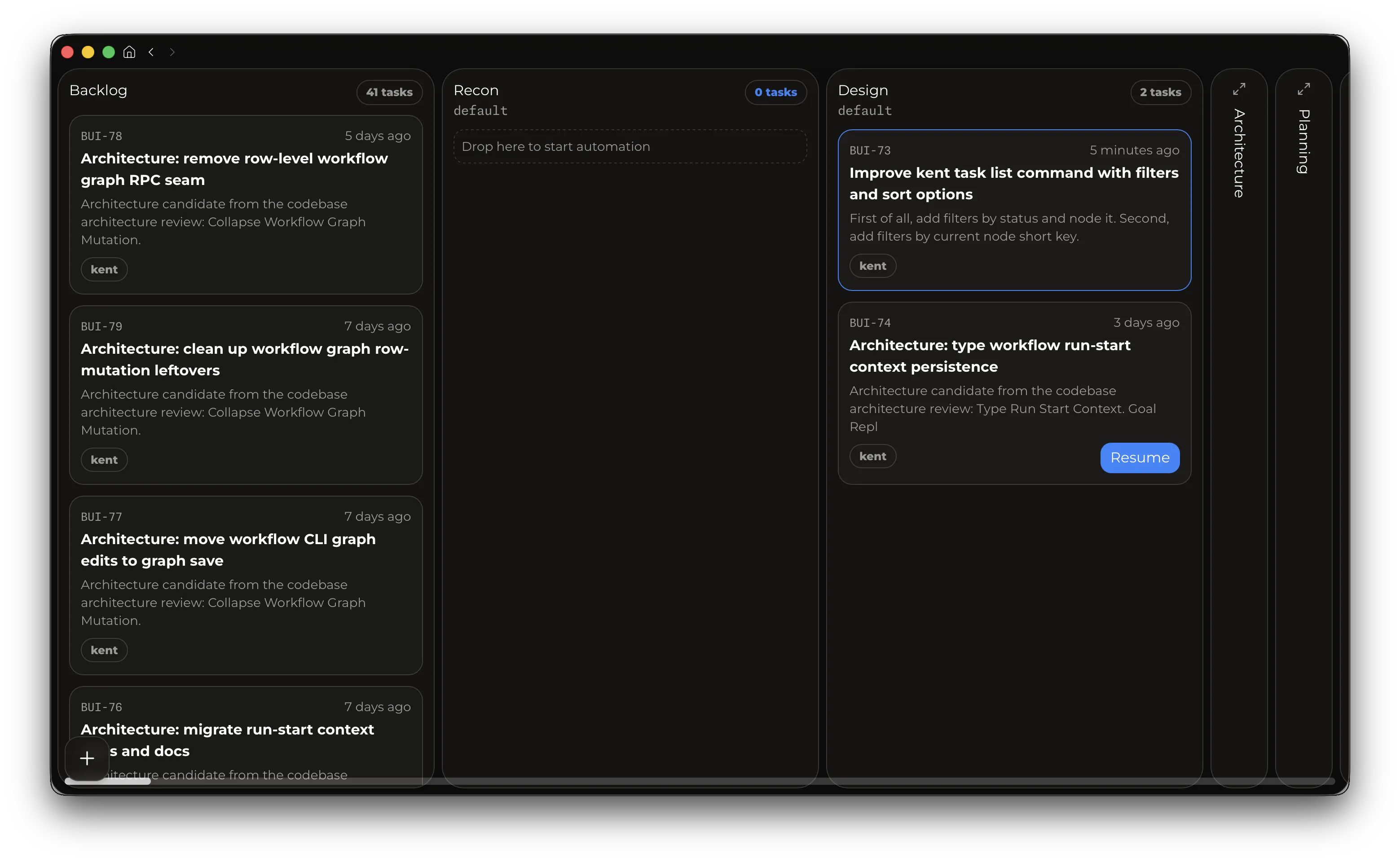
The desktop app lets you use Kent's [Workflows and Tasks](../workflows/) feature to build agentic graphs and deterministic pipelines to **fully automate** processes and scale to 10s or 100s of agents.
### Manual install
Download the installer for macOS Apple Silicon, Linux x86_64, or Windows x64 at [kent.sh/desktop](https://kent.sh/desktop), or install the macOS app via Homebrew:
```bash
brew install --cask respawn-llc/tap/kent-desktop
```
Homebrew installs update through `brew upgrade`, standalone installs self-update.
:::note
The desktop app, due to the asynchronous nature of workflows, needs a [server](../server/) to connect to.
:::
## First use
:::danger[Security Warning]
Out of the box, Kent does not ship a sandbox, and does not enforce tool calling permissions. **Using Kent is equivalent to running `claude --dangerously-skip-permissions` or `codex --yolo`.** The model will have **full access** to your entire computer. By using Kent, you accept full responsibility for what the model does on your computer. If you want to safely run Kent in a real sandbox, see [Sandboxing](../sandboxing/).
:::
Start Kent CLI with: `kent`. The first run will ask you to pick auth option and walk you through onboarding.
The session picker shows when a newer Kent server release is available; update Kent through the installation channel you used.
Supported auth options:
- OpenAI/Codex subscription OAuth via the startup sign-in picker.
- No auth for custom providers. This option supports any provider like `ollama`, `omlx` local models, or third-party providers like GLM coding plan. The only requirement is that the provider supports the OpenAI Responses format.
:::note
Anthropic or Gemini subscriptions/models will not be supported until these companies allow third-party harnesses in their ToS.
:::
- Press `F1` to invoke the help menu.
- Use `Enter` to steer the model, `Tab` to queue messages. Slash commands can be queued too!
- Use `Shift+Tab` to toggle between detailed transcript mode and lean ongoing mode.
- Type `$ ` to execute a shell command and show its output to the model.
- Press `Esc` twice to enter Edit mode, which lets you go back in time, edit a previous message, and fork the session starting with it. Use `Up`/`Down` to walk through user messages. File edits are **not** rolled back.
- Use the `Up`/`Down` arrow keys to select and resend previous prompts.
- Press `Ctrl+V/D`, `Alt+V/D` to paste clipboard images or text.
- Use `/review` to start a code review. After the review finishes, you can use `/back` to teleport to the original session.
- `/name ` will set your session name in the picker and terminal title.
- `/autocompaction` will toggle compaction, and `/compact` will trigger one. If autocompact is off, you can go above 100% context usage if model allows it. **Going above 100% will cost more and degrade model performance**. Repeating `/compact` before the next model request succeeds without compacting the conversation again.
- Run `/status` to get detailed info about the session.
For the full command reference, see [Slash Commands](../slash-commands/).
## Configuration
Kent reads settings from `~/.kent/config.toml`. The full reference is on the [Configuration](../config/) page.
## Skills and slash commands
On first launch, the setup wizard can optionally import existing skills and slash-command directories from supported providers.
Kent discovers skills from:
- `/.kent/skills`
- `~/.kent/skills`
- `/.generated/skills`
You can disable skills for new sessions in `config.toml`:
```toml
[skills]
creating-skills = false
```
Changes take effect when a session starts or after compaction.
## Supervisor
- Use `/supervisor` to toggle its invocation for the current session. Supervisor is a feature that will automatically review the work done by the model. It increases costs by ~15% (if using the main model) but improves results. By default supervisor uses the same model as the main one. That may be too costly / too slow for you. [Configuration](../config/) page contains instructions on how to change supervisor model.
## Advanced
Once you're comfortable driving the traditional agentic CLI, consider upgrading to [workflows](../workflows/).
# Sandboxing and Security
> Kent's default trust model, outside-workspace edit prompts, and remote/container server setup.
:::caution
Kent is YOLO by default: it does not run tools inside a built-in sandbox.
The agent executes shell commands and file tools in the environment where the Kent server runs.
If that environment can read secrets, reach networks, or modify files, the agent can do the same.
:::
However, Kent's [client-server](../server/) architecture makes it easy to run Kent in a **completely isolated, secure container or VM**.
## Outside-Workspace Edits
Kent will ask for your approval for manual edits happening outside its **main workspace** or worktree. **This is not sandboxing: the agent can easily bypass this.** It's intended for convenience, hallucination and mismatched working-directory prevention. To allow all edits, set config:
```toml
allow_non_cwd_edits = true
```
## Container Image Shape
A Kent sandbox image should contain:
- A `kent` binary compatible with the client version you use.
- Mandatory server dependencies: shell, `rg` and `git`, for normal operation of the server.
- A `config.toml` file with your setup.
- Optional tools the agent may need: language toolchains, package managers, `rg`, `fd`, `jq`, `patch`, `curl`, `gh`, `wget`, `python` and project-specific CLIs.
- An (ideally persistent) workspace directory such as `/workspace`.
- A writable Kent persistence root, usually under the sandbox user's home.
- Network policy that matches the task; disable or restrict egress when needed.
Avoid mounting your host home directory, full ~/.kent/, or broad source trees into the sandbox.
Mount only the workspace, caches, and credentials the task needs.
## Example Dockerfile
This is a generic starting point.
Add the language runtimes and project tools your workflows need.
```dockerfile
FROM debian:bookworm-slim
ENV DEBIAN_FRONTEND=noninteractive
ENV HOME=/home/kent
ENV SHELL=/bin/bash
ARG KENT_VERSION=
RUN apt-get update \
&& apt-get install -y --no-install-recommends \
bash \
ca-certificates \
curl \
fd-find \
file \
git \
jq \
less \
netcat-openbsd \
openssh-client \
patch \
procps \
python3 \
python3-pip \
python3-venv \
ripgrep \
tar \
tini \
unzip \
xz-utils \
zip \
&& ln -sf /usr/bin/fdfind /usr/local/bin/fd \
&& useradd --create-home --shell /bin/bash kent \
&& mkdir -p /workspace /home/kent/.kent \
&& chown -R kent:kent /workspace /home/kent
SHELL ["/bin/bash", "-o", "pipefail", "-c"]
RUN curl -fsSL https://kent.sh/install.sh \
| KENT_PREFIX=/usr/local KENT_VERSION="${KENT_VERSION}" sh
USER kent
WORKDIR /workspace
EXPOSE 53082
ENTRYPOINT ["tini", "--"]
CMD ["kent", "serve"]
```
The image installs the latest release by default.
Build with `docker build --build-arg KENT_VERSION=vX.Y.Z -t kent-sandbox .` if you need to pin one Kent release.
Package-manager cache cleanup is useful for smaller images but omitted here for clarity.
Run the server so it listens inside the container and is reachable from the host:
```bash
docker run --name kent-sandbox --rm -it \
-p 127.0.0.1:53082:53082 \
-e KENT_SERVER_HOST=0.0.0.0 \
-e KENT_SERVER_PORT=53082 \
-v "$PWD:/workspace" \
kent-sandbox
```
In another terminal, point the local client at that server:
```bash
export KENT_SERVER_HOST=127.0.0.1
export KENT_SERVER_PORT=53082
kent project create --path /workspace --name sandbox
kent
```
The project path is `/workspace` because that is the path visible to the server.
# Security
Please report security issues privately.
Do not open a public GitHub issue for an unpatched vulnerability.
For Kent's default tool trust model and container/VM isolation guidance, see the [Sandboxing and Security guide](https://kent.sh/sandboxing/).
## Reporting a Vulnerability
Use one of these private channels:
- `hello@respawn.pro`
- GitHub private vulnerability reporting.
If you are unsure whether something is security-sensitive, report it privately first.
## What to Include
Please include as much of the following as possible:
- affected version, tag, or commit
- impact and attack scenario
- clear reproduction steps or proof of concept
- relevant environment details
- whether the issue is already publicly known
Reports that are concrete and reproducible are much easier to triage quickly.
## Response Expectations
We aim to acknowledge security reports within 7 days and follow up on a best-effort basis until resolution.
We do not currently publish a fixed remediation SLA.
## Supported Versions
Security fixes are handled on a best-effort basis for the latest release and the current `main` branch.
Older versions may be asked to upgrade instead of receiving backported fixes.
## Scope
Examples of issues that should be reported through the private security process include:
- credential disclosure
- authentication or session-handling flaws
- unsafe file access or workspace-boundary bypasses
- command-execution vulnerabilities
- supply-chain or release-integrity issues
## Disclosure
Please allow maintainers a reasonable opportunity to investigate and ship a fix before public disclosure.
Once a fix is available, we may coordinate timing for public disclosure and release notes.
## Bug Bounty
There is currently no bug bounty program.
# Kent server
> Kent's local client-server architecture and background service management.
Kent runs all its work through a local server process. Frontends are clients: TUI, desktop app, headless runs, and other local integrations all need the server to be running. To start the server, run `kent serve`.
See [connection configuration](../config/#connecting-to-a-server) for address selection and session resume behavior.
The server owns all long-running work: sessions, projects, runtime orchestration, background shells, tool execution, tasks, workflows, and storage.
Why? Because this:
- Gives ability to fully isolate work on another machine, VM, or container. See [Sandboxing](../sandboxing/) for remote/container setup.
- Drastically reduces resource consumption
- Allows agents to work asynchronously during workflows.
- Allows spawning agents on schedule and periodically.
- Uses only about 25 MB of RAM while idle.
## Background service
The easiest way to use Kent locally without manually running the server is via the **system service**:
```bash
kent service status
kent service install
kent service restart
kent service stop
kent service start
kent service uninstall
```
Install the service once, then restart it after updates.
## Provider environment
See [API keys and background services](../authentication/#api-keys-and-background-services) for provider credentials and the server's `.env` file.
## Backends
| OS | Service |
| ------------ | ---------------- |
| macOS | LaunchAgent |
| Linux / WSL2 | `systemd --user` |
| Windows | Windows Service |
- On Windows, uninstalling the service stops the server.
- Linux headless machines may need lingering enabled so the server survives logout `loginctl enable-linger "$USER"`.
:::tip
You can run multiple manually launched servers with different storage paths. Managed service installation uses one registration regardless of storage path. All service commands accept `--persistence-root` and honor `KENT_PERSISTENCE_ROOT`. The root you install with is remembered, so pass the same root on `status`/`start`/`stop`/`restart`/`uninstall`.
:::
# Slash commands
> Built-in slash commands and file-backed custom prompts.
## Commands
| Command | Input | What it does |
| --------------------------------------------------------------------------------------- | ---------------------------- | ------------------------------------------------------------------------------------------------------------------------------------------------------------------ |
| `/exit` | none | Exit Kent. During active work, Kent detaches while the server runs independently. |
| `/new` | none | Start a new session without stopping active work in the current session. |
| `/resume` | none | Open the session picker without stopping active work in the current session. |
| `/login`, `/logout` | none | Manage [provider connections](/authentication/) with `/login`. Remove a connection with `/logout`. |
| `/compact ` | optional free-form text | Compact the current context. Trailing text is passed through as **additional** compaction instructions. Active non-workflow goals continue in the resumed context. |
| `/name ` | optional free-form text | Set an existing session's title. Blank input clears it. Outer whitespace is trimmed. |
| <code>/thinking <low|medium|high|xhigh|max|ultra></code> | optional single value | Set [Thinking](/config/#thinking). Empty input shows the current level. |
| <code>/fast [on|off|status]</code> | optional single value | Toggle or inspect fast mode. |
| <code>/supervisor [on|off]</code> | optional single value | Toggle supervisor invocation. |
| <code>/autocompaction [on|off]</code> | optional single value | Toggle auto-compaction. |
| `/status` | none | Inspect config, Git, runtime and model details. Config lists contributing global, shared and private files in precedence order, plus environment/CLI overrides. |
| <code>/goal [pause|resume|clear|<objective>]</code> | optional action or objective | Set or manage the current session goal (ralph-loop). Empty input opens the goal page. |
| <code>/ps [kill|inline|logs] <id></code> | optional action + id | Open the background-process picker, or manage a specific background shell. |
| <code>/wt</code> | none | Open the Worktrees page. |
| <code>/wt create</code> | none | Create a worktree. New branches require a non-empty base ref. |
| <code>/wt switch <target></code> | required selector | Schedule entry into a worktree by id, branch, display name, or path. |
| <code>/wt leave</code> | none | Schedule a return to the main workspace. |
| <code>/wt delete [<target>]</code> | optional selector | Delete a worktree. |
| `/copy` | none | Copy the latest durable model final answer to the system clipboard. |
| `/back` | none | Return to the parent session, if present, with the child’s latest durable final answer prefilled. |
| `/review <what to review>` | optional free-form text | Trigger Kent's native code review. Uses the empty session or starts a fresh child session. |
| `/init <instructions>` | optional free-form text | Run repository initialization. Uses the empty session or starts a fresh child session. |
| `/prompt:<name>` | optional trailing arguments | Run a server-owned custom prompt command. |
## File-backed prompt commands
Custom prompt commands come from Markdown files on the connected server.
The effective roots, in descending precedence, are:
- `<workspace>/.kent/prompts`
- `<workspace>/.kent/commands`
- `<persistence-root>/prompts`
- `<persistence-root>/commands`
- `<persistence-root>/.generated/prompts`
- `<persistence-root>/.generated/commands`
If the exact `$ARGUMENTS` token appears in the body, Kent inserts the trimmed trailing arguments at every occurrence, consuming each token. Otherwise, Kent appends non-empty trailing arguments after one blank line.
# Workflows
> Build reusable agent workflows, edit them in Kent Desktop, and run tasks through them.
Kent workflows are reusable process graphs for agent work. A workflow defines where a task starts, which agent roles work on it, which choices those agents can make, when humans approve a step, how parallel branches join, and where automation stops.
Workflows are linked to projects. Tasks live in projects, then move through the linked workflow as Kent starts sessions, manages worktrees, collects transition outputs, asks questions, waits for approvals, and records activity.
Example:
```text
Backlog -> Plan -> Implement -> Review -> Done
^ |
| v
+----- Needs changes
```
## 1. Choose how to build
### Ask Kent to create it
The easiest path is to ask Kent to model your existing work process as a workflow. Kent agents can inspect your repo, agent roles, skills, slash commands, project conventions, and past sessions, then create the reusable workflow definition for you. After that, use Kent Desktop to review and adjust the graph.
Example prompt:
```md
Use the Kent workflows skill. Study my existing Claude Code/Codex data: agent configurations, slash commands, skills, and session logs that represent my real workflow. Turn that work process into an automated Kent workflow for this project.
Include the roles, nodes, transitions, prompts, parameters, context modes, approvals, and completion modes you recommend. Link it to this project, set it as the default if it is ready, and tell me what I should review in the desktop workflow editor. Follow the rules in the skill strictly. Launch review subagents to validate the prompts and workflow topology until they stop finding issues, and only then end your turn.
```
This path works best when you describe the real decision points in your process: when implementation is done, what a review must return, when QA is required, what counts as shipped, and where you want explicit approval.
### Build or edit in Kent Desktop
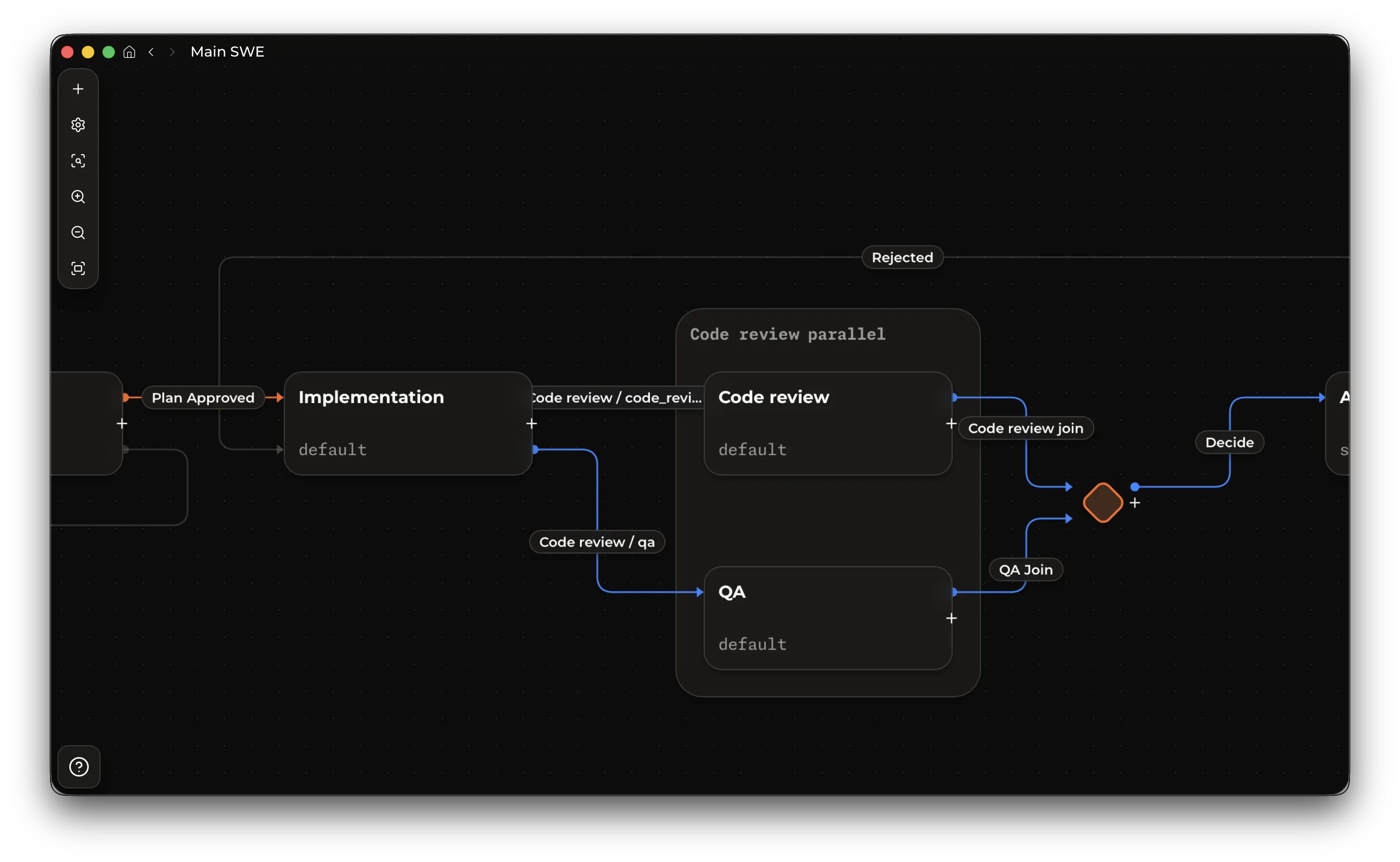
Use Kent Desktop when you want direct control over the workflow definition.
From a project, create or link a workflow, open the workflow editor, then edit the graph.
## 2. Set up agent roles
Workflow agent nodes run existing Kent subagent roles. Each agent node requires an assignee, and that role must effectively enable `ask_question`. See [tools](../config/#tools) for tool configuration. Why? Ability to ask questions prevents infinite loops and other issues where the workflow is problematic or requirements are ambiguous.
Eligible serial transitions into agent nodes can select an assignee from roles explicitly configured with `agent_callable = true`. Kent force-enables `ask_question` for that transition-selected execution.
```toml
[subagents.implementer]
description = "Implements approved tasks and leaves reviewable changes."
model = "gpt-6-luna"
thinking_level = "xhigh"
system_prompt_file = "agents/implementer.md"
agent_callable = false # prevent ordinary Kent sessions from delegating to this role
[subagents.reviewer]
description = "Reviews changes and returns actionable findings."
model = "gpt-6-astra"
thinking_level = "medium"
system_prompt_file = "agents/reviewer.md"
workflow_subagent = false # prevent workflow agents from delegating to this role
```
See [Headless runs](../headless/#subagent-roles) for the role configuration reference.
## 3. Understand the graph
### Workflow, project, and task
- A workflow is the reusable graph definition.
- A project links workflows, provides workspaces, and owns the task board.
- A task is the durable unit of work that moves through one workflow.
- A task directly owns its current nodes: normally one node, or several while a transition fans out into parallel branches. Current nodes have no independent identity.
- An agent current node can bind to an existing Kent session. A script current node uses its saved script state for resumption.
Creating a task puts it in Backlog. Starting the task applies the workflow's start transition and creates its first executable Current Node.
### Nodes
Nodes are workflow states. Visible executable and terminal nodes become board columns.
| Node kind | Use |
| --------------- | ------------------------------------------------------------------ |
| Start / Backlog | Where tasks rest after creation. Each workflow has one start node. |
| Agent | Runs a Kent agent using the selected subagent role. |
| Script | Executes a local script on the Kent server. |
| Join | Waits for parallel branches and aggregates their parameters. |
| Terminal | A sink where automation stops, commonly Done. |
Keep node keys stable and machine-friendly, such as `plan`, `implement`, `review`, `needs_changes`, and `done`. Keys are used by agents, prompts, and validation, so prefer lower-case letters, numbers, and underscores over display labels with spaces.
### Transitions
A transition is a choice an agent can make when it completes a node. A transition has a human label, a stable key, and a model-facing description that tells the source agent when to choose it.
In graph terms, each branch is an edge to a target node.
Each transition contains one or more branches:
- A normal transition has one branch to one target node.
- A fan-out transition has multiple branches and starts parallel work.
- A branch into an agent node carries that target agent's prompt, context mode, approval setting, and parameters.
Use transition descriptions for agent-facing choice criteria. For example, a Review node might offer `done` with "Choose when the implementation is correct and ready to ship" and `needs_changes` with "Choose when implementation changes are required."
### Parallelism, node groups, and joins
Use a node group when you want several nodes to execute in parallel.
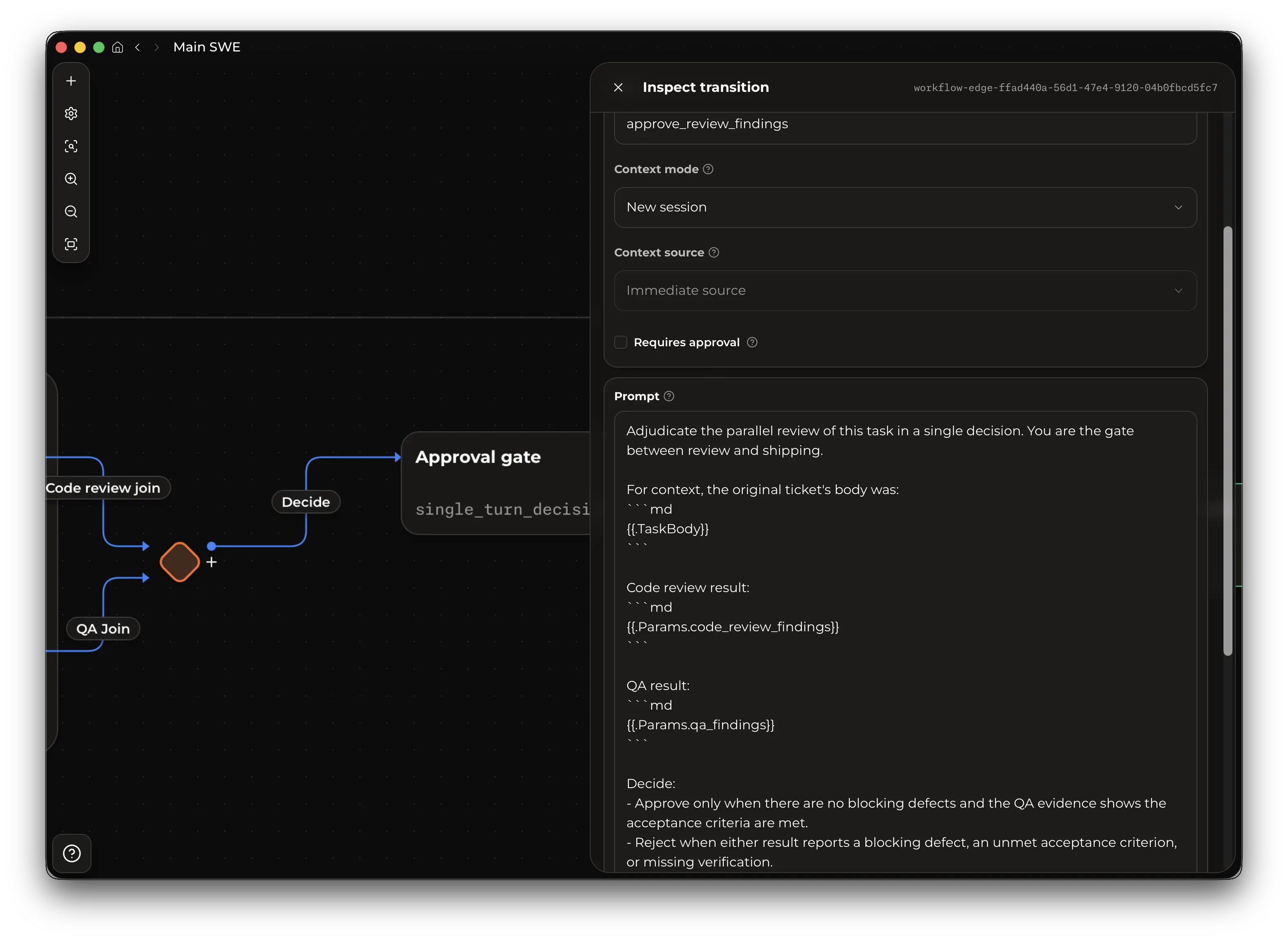
For example, an SWE workflow can send implementation output to Code Review and QA at the same time, join both results, then continue to an Approval Gate node that decides whether to ship or send the task back for changes.
```text
Implement
|
+--> Code Review --+
| |
+--> QA -----------+--> Join -> | Approval Script | -> Done
```
To create a new parallel group, right-click the node and select "Group". Drag additional agent nodes into the group to add branches.
Wire the group as one fan-out transition from the upstream source to every grouped branch. Each branch then routes to the group's join node, and the join routes to the next node in the workflow.
Use the join to aggregate branch parameters, then put synthesis, release-note writing, approval, or final decision-making in a normal agent/script node after the join.
## 4. Configure agent work
### Prompts
Agent prompts live on transitions into agent nodes. The transition prompt is the work order the target agent receives when that branch starts.
Prompts can use task fields:
```md
Implement {{.TaskShortId}}: {{.TaskTitle}}
Task details:
{{.TaskBody}}
```
They can also use parameter values produced by earlier transitions:
```md
Address these review findings:
{{.Params.findings}}
```
They can also use transition commentary, a default parameter that agents usually provide when they finish the task:
```md
Source transition notes:
{{.Params.commentary}}
```
To reference a guaranteed earlier transition, qualify the parameter with that transition key:
```md
Use the approved plan:
{{.Params.planning.plan_file_path}}
```
A previous-transition parameter is valid only when every path to the prompt passes through that transition. If a value might not exist because of branching, declare a local parameter on the transition that needs it.
### Script nodes
Use a script node to run a deterministic local executable. Script nodes can be used anywhere an agent node can.
Set the script path on the script node. **All paths are resolved on the server machine.** Relative paths resolve against the task's execution root.
The node script receives JSON as stdin:
```json
{
"plan_file": "docs/plan.md",
"_kent": {
"task_id": "task_123",
"node_id": "node_456",
"transition_branch_key": "release_notes"
}
}
```
Top-level properties are incoming workflow parameter values. `_kent` contains meta-information about the workflow execution, useful for scripting or logging.
Stdout must be the workflow completion JSON. Stderr is diagnostics only. For example:
```json
{
"transition": "done",
"commentary": "Generated release notes.",
"release_notes_path": "docs/release-notes.md"
}
```
If the script exits non-zero, writes invalid completion JSON, omits required parameters, or becomes unavailable, Kent interrupts the Current Node. Resume reruns the script with the same incoming parameter values and the current workflow script path and transition contracts.
### Parameters
Parameters are required string outputs from the source agent. They are how one node hands structured facts to the next branch.
For example, a Review to Needs Changes transition can require:
| Parameter | Description |
| -------------- | ------------------------------------------------------ |
| `findings` | Required implementation changes, including file paths. |
| `verification` | Checks the reviewer ran and the results. |
Declare parameters on the transition whose source agent can produce them. In fan-out transitions, matching parameter keys must have matching descriptions because they represent one shared output contract.
For each transition, the source agent must provide the declared parameters before it can complete that branch. The target agent receives those values where the transition prompt references them with placeholders such as `{{.Params.findings}}`.
### Transition assignee and thinking selection
Each eligible serial agent or script transition into an agent node can independently enable **Let the previous node choose** for the target assignee and **Let the previous node select thinking level** for thinking. A disabled selector uses the target agent node's configured fallback assignee or configured thinking. Fan-out transitions do not support either selector.
Transition-selected effort follows the session's [thinking settings](/config/#thinking). Transition-selected assignees must be explicitly agent-callable roles.
### Context modes
Context mode controls how the target agent starts its session.
It applies to transitions into agent nodes. Transitions into joins or terminal nodes do not start agent sessions.
| Mode | Best for | Trade-offs |
| ---------------------------- | -------------------------------------------------------------------------- | -------------------------------------------------------------------------------------------------------------------------------------------------------------------------------------------------------------------- |
| New session | Independent work, QA, code review, security review, release note drafting. | Lowest starting context and cleanest role boundary. The prompt and parameters must contain the context the target needs. |
| Compact and continue session | A large phase handing off to another role or another direction. | Adds a handoff step and starts a new session from a summary. Good when full conversation history is unnecessary but a clean summary matters. This mode forces compaction at the transition and allows a role switch. |
| Continue session | Tight loops and direct follow-up work with the same context. | Uses the same conversation history and prompt cache. |
Continuation modes also have a context source:
- Immediate source uses the session from the node that just completed.
- Selected node uses a previous node that is guaranteed to have run before this transition.
- Previous target uses the latest saved session associated with this edge's target node. Use it for loops where the workflow returns to a node and should continue that node's prior session.
- Previous target, or new session uses the latest saved session associated with this edge's target node when one exists. Use it for re-review loops where the first pass starts fresh and later passes continue the target's prior session.
Use `new_session` or `compact_and_continue_session` when you need to change agent roles between sessions or the task benefits from a fresh pair of eyes.
### Human approval
A transition can require approval. When the source agent chooses that transition, the task waits before target branches start. Use approvals for plan acceptance, destructive operations, release steps, or any point where you want to inspect the agent's proposed direction. For fan-out transitions, approval gates the whole selected transition before any branch starts.
### Completion modes
Completion mode controls how an agent node reports that it has finished and which transition it selected.
Only agent nodes have completion modes. Start, join, and terminal nodes use their own transition rules.
| Mode | Use | Cache and cost notes |
| ---------------------- | -------------------------------------------------------------------------------------------------------------------------------------------------------- | ----------------------------------------------------------------------------------------------------------------------------------------------------- |
| Inherit global default | Use the workflow completion mode from [configuration](../config/#workflow). | Same behavior as the resolved configured mode. |
| Auto | Best default for most nodes. Kent picks the effective mode from the workflow shape, provider support, and shell availability. | Usually gives the safest cache/cost trade-off automatically. |
| Structured output | Provider-native structured output. Use it when the provider supports strict structured responses and the node is not part of a `continue_session` chain. | Lowest-friction on capable providers, but prevents the current node from starting when unsupported and fully invalidates cache on continued sessions. |
| Tool call | Dedicated completion tool. Use it for providers without structured-output support. | Reliable tool-driven completion, but fully invalidates cache on continued sessions. |
| Shell command | Completion through the agent's shell environment. Prefer this for `continue_session` chains. | Requires the shell tool for the target role and gives the agent shell access, but avoids completion-contract cache invalidation. |
| Unstructured output | Best-effort raw JSON final answer. Use only when you need `continue_session` and cannot use shell commands. | Most fragile mode. It avoids dynamic completion metadata, but depends on the model following exact final-answer instructions. |
`auto` chooses unstructured output if the runtime has no shell available. Otherwise it chooses shell command when the workflow contains a `continue_session` transition, structured output on capable providers, and tool call as the remaining fallback.
### Cache and cost behavior
Workflow design affects prompt-cache continuity and token spend:
- `continue_session` gives the strongest cache continuity because it uses the same session, conversation history, and provider cache.
- `new_session` starts clean. The prompt and parameters must carry enough context for the agent, otherwise the target agent will spend tokens re-orienting in the workspace, negating the cost and quality benefits of fresh context.
- `compact_and_continue_session` compacts the previous session, then starts a fresh session from that summary with the target role. It frees context but adds costs to compact the session.
## 6. Manage tasks
Each task belongs to one project and one linked workflow: the project supplies workspaces and execution environment, while the workflow supplies the automation path.
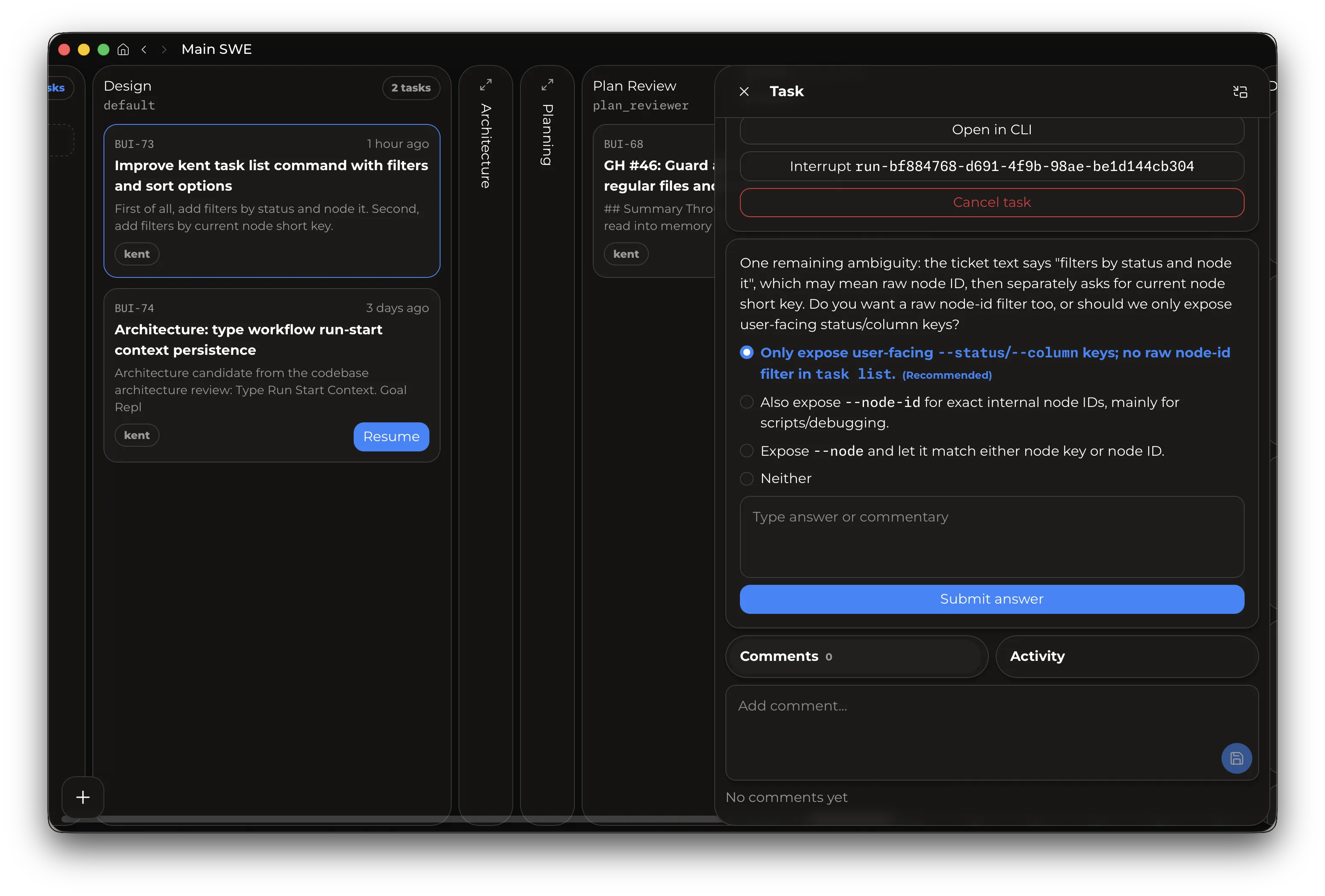
- Project tasks contain github-style labels. You can create and rename labels from the label chooser. Deleting a label **removes it from every task** in the project.
- Task dependencies connect blocked and blocking tasks and offer convenience UI to build and complete task chains.
- Search tasks by pressing `Alt+Space` on any page of the desktop app or via the 🔍 icon.
### Task worktrees
The workflow's worktree policy chooses where agent and script nodes run:
| Policy | Execution root |
| ------------------------- | --------------------------------------------------------------------------------------------------------------- |
| Ask when execution starts | Will ask for a target for every task start |
| No managed worktree | The task's selected workspace. |
| Source HEAD | A worktree created from the source repository's current commit. |
| Repository default branch | A worktree created from the default branch configured by local remote-HEAD metadata (a remote must be present). |
| Custom Git revision | Provide a fixed branch, tag, or commit. |
Managed replacements use a fresh worktree and default their branch name to the task short ID. If that name collides, supply an available name through Desktop's Branch name field or `--branch-name`.
More about worktrees on the [Worktree](../worktrees/) page.
# Worktrees
> Create, enter, and delete Git worktrees from Kent.
Kent will create and manage worktrees for you. Agents will enter new worktrees if they need to, and workflows can automatically create worktrees for their tasks (see [workflows](../workflows)). If you want to manually manage worktrees, run `/wt` in the TUI, or ask the agent to use the CLI:
```bash
kent worktree status
kent worktree list
kent worktree create <branch-or-ref> [path]
kent worktree enter <selector>
kent worktree leave
kent worktree delete <selector>
```
## Configuration
Use a setup script to prepare new worktrees with local data such as `.env` files, encryption credentials, Gradle wrappers, installed dependencies, local skills, docs, or config.
Setup uses the [configuration layers](../config/#precedence), including the Main Workspace's `.kent/config.local.toml`. The private file is read from the Main Workspace. Relative `setup_script` paths resolve from the source workspace.
```toml
[worktrees]
base_dir = "~/.kent/worktrees"
# setup_script = "scripts/setup-worktree.sh"
# setup_timeout_seconds = 60
```
- `base_dir` sets the namespace for Kent-managed worktrees.
- `setup_script` runs after Kent creates a worktree. Relative paths resolve from the source workspace root.
- `setup_timeout_seconds` sets the setup script timeout. The default is `60`.
- Set `setup_timeout_seconds` to `0` or a negative value to disable the timeout.
Kent invokes the script with the created worktree as its cwd and three positional arguments:
1. source workspace root
2. branch name
3. worktree root
Kent supplies these environment variables to the script:
- `KENT_WORKTREE_SOURCE_WORKSPACE_ROOT` - Original/main workspace root that created the worktree, e.g. `/home/user/dev/app` or `C:\Users\user\dev\app`.
- `KENT_WORKTREE_BRANCH_NAME` - Branch/ref name selected for the new worktree, e.g. `feature/search-fix`.
- `KENT_WORKTREE_ROOT` - Opaque filesystem path to the created worktree. The setup script runs with this as cwd, for example `/home/user/.kent/worktrees/app/417`. Read the worktree path from this variable.
- `KENT_WORKTREE_SESSION_ID` - Kent session id that requested the worktree, e.g. `b31234ab-78ce-43d1-8f4c-2d6c6d4adbc1`. This variable is present when a session initiates creation. Sessionless CLI creation and workflow task setup omit it.
- `KENT_WORKTREE_PROJECT_ID` - Kent project id for the workspace/project, e.g. `project-94b18685-19ed-4513-96bb-bcffa10410ff`.
- `KENT_WORKTREE_WORKSPACE_ID` - Kent workspace binding id for the source workspace, e.g. `workspace-2f7b6d4a`.
- `KENT_WORKTREE_WORKTREE_ID` - UUID for the created worktree, e.g. `c4aaf0cf-4c50-4560-b6a2-6c294d0b1495`.
- `KENT_WORKTREE_CREATED_BRANCH` - Whether Kent created a new branch for this worktree, e.g. `true` or `false`.
- `KENT_WORKTREE_PAYLOAD_JSON` - Full setup payload as one JSON string containing all fields above, e.g. `{"source_workspace_root":"/repo","branch_name":"feature/x","worktree_root":"/repo-wt","session_id":null,"project_id":"...","workspace_id":"...","worktree_id":"...","created_branch":true}`.
It also receives the same payload as JSON on stdin:
```json
{
"source_workspace_root": "/path/to/main/workspace",
"branch_name": "feature/name",
"worktree_root": "/path/to/new/worktree",
"session_id": null,
"project_id": "...",
"workspace_id": "...",
"worktree_id": "...",
"created_branch": true
}
```
`session_id` is nullable: Sessionless CLI creation and workflow task setup supply `null`, while session-originated creation supplies the requesting session ID.